With constant screen exposure, you risk eye strain and sleep disruption; set limits and take microbreaks, and use blue-light filters to achieve better focus and reduced fatigue.
Key Takeaways:
- Set clear daily limits for work and personal screen time, schedule regular short breaks, and implement a nightly shutdown routine.
- Use tracking apps and built-in device features to monitor usage, silence nonnecessary notifications, and enable focus modes during deep work.
- Create tech-free times before sleep and during meals, and optimize workspace ergonomics and lighting to reduce eye strain and discomfort.
The Physiology of Screen Overexposure
Screen overexposure taxes your visual and nervous systems: prolonged focus lowers blink rate, dries the ocular surface, and excessive light alters melatonin, increasing sleep disruption. Your posture and sympathetic arousal also rise, boosting risk of headache and neck pain.
Impact of Blue Light on Circadian Rhythms
Blue wavelengths emitted by screens suppress your melatonin, delay sleep onset, and shift circadian timing, making it harder for you to fall asleep and wake refreshed. Reducing evening exposure or using filters reduces sleep disturbance and helps restore healthy rhythms.
Identifying Digital Eye Strain and Computer Vision Syndrome
Eye strain causes dryness, blurred vision, frequent headaches, double vision, and neck discomfort; you may also experience light sensitivity and difficulty focusing after screen use. Watch for persistent blurring or severe pain, which warrant professional assessment.
Signs often improve when you follow the 20-20-20 rule, blink more, adjust brightness and contrast, and use anti-reflective lenses; persistent symptoms require a comprehensive eye exam.
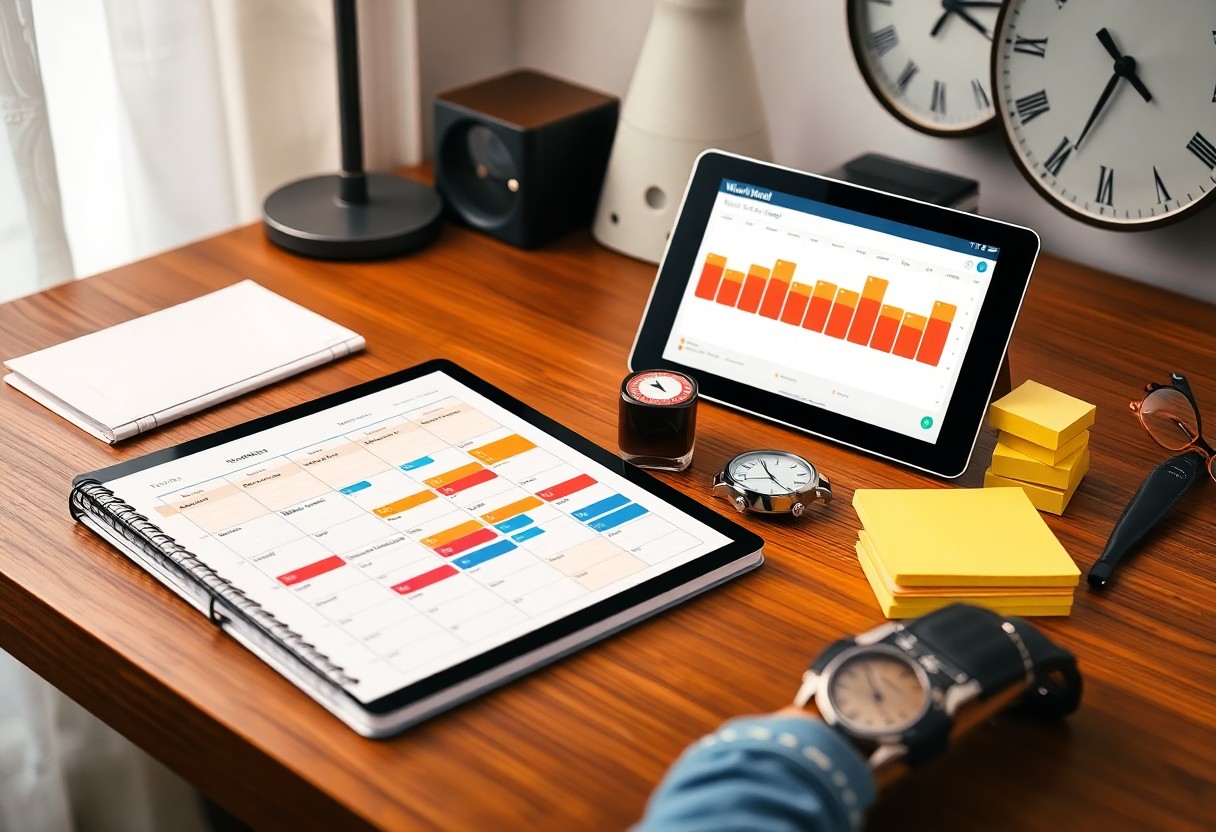
Strategic Scheduling and Time Blocking
You should block focused work intervals and short screen-free breaks to protect concentration and eyes; schedule no-screen focus blocks and review slots to prevent overflow.
Implementing the Pomodoro Technique for Visual Breaks
Set 20-25 minute focus windows followed by 5-10 minute visual breaks, and during breaks look away, stretch, or step outside to reduce eye strain and reset attention.
Establishing Hard Boundaries for After-Hours Connectivity
Turn off work notifications and set a strict daily cutoff so you can recharge; unplugging prevents late-night screen exposure and reduces burnout risk.
If you enforce boundaries, tell colleagues your cutoff, enable an after-hours auto-reply, and route true emergencies to a monitored channel; place work devices away at night and use app limits to protect sleep quality and lower burnout risk.
Optimizing the Digital Workspace
Optimizing your digital workspace by arranging screens, lighting, and apps reduces distractions, preserves focus, and lowers eye strain; apply 20-20-20 breaks and limit notifications for sustained productivity.
Ergonomic Screen Positioning and Lighting Adjustment
Align your screen at eye level, tilt it slightly to cut glare, and position task lighting to avoid harsh contrast so you minimize neck strain and reduce prolonged eye fatigue.
Software Solutions for Blue Light Filtration
Install blue-light filters or night modes that shift displays to warmer tones after sunset to help you avoid sleep disruption and lessen evening glare.
Choose software offering adjustable color temperature, scheduled activation, and minimal permissions; prefer open-source or reputable vendors, avoid ad-supported apps that pose privacy risks, and test settings to confirm improved sleep and reduced eye discomfort.
Behavioral Shifts for Digital Mindfulness
Shift your daily routines to reduce screen fatigue by scheduling micro-breaks, batching notifications, and using evidence-based tools like Developing the WorkingWell Mobile App to Promote Job … to track usage and reinforce healthier habits.
The 20-20-20 Rule for Ocular Health
Apply the 20-20-20 rule by pausing every 20 minutes to gaze at an object about 20 feet away for 20 seconds, reducing eye strain and dry eyes while maintaining visual focus during long screen sessions.
Practicing Intentional Disconnection During Breaks
Choose to step away from screens on breaks to get a real mental reset, stretch, or walk, preventing cognitive overload and improving focus when you return to tasks.
During breaks, you can set a clear ritual: silence notifications, leave your phone in another room, and do a brief physical activity to break dopamine-driven checking and reduce overstimulation, which lowers stress and restores concentration so you return more productive and less fatigued.
Organizational Strategies for Team Wellness
Teams should set clear policies that cap daily screen hours, schedule focus blocks, and require device-free breaks so you reduce fatigue and protect attention; minimizing excessive meetings prevents burnout and keeps productivity sustainable.
Protocols for Reduced-Meeting Cycles
Set meeting cadences to shorter, biweekly reviews, provide clear opt-out rules, and require agendas so you use time efficiently; adopt a no-meeting day to reclaim deep work and lower screen strain.
Encouraging Asynchronous Communication Standards
Adopt clear response windows and message templates so you avoid constant pings; require status indicators and priority tags to prevent urgent noise while supporting focused work.
Create documented SLAs for message types-instant (30-60 minutes), routine (4 hours), non-urgent (24 hours)-and teach you to use thread replies, concise subject lines, and centralized docs; banning @channel for non-urgencies reduces interruptions and preserves deep focus.
Monitoring Progress and Cognitive Recovery
Tracking recovery metrics helps you see cognitive rebound after breaks; use sleep, focus tests and mood logs to chart gains. Consult How to Minimize the Effects of “Too Much Screen Time” for methods to reduce digital strain.
Utilizing Screen Time Analytics for Self-Correction
Analyzing your screen-time trends lets you identify patterns and set strict limits; use weekly summaries to adjust app use and break schedules so you reduce cognitive load and improve focus.
Assessing Long-term Gains in Focus and Productivity
Measuring your monthly progress shows sustained improvements in attention and task completion; highlight productivity gains and reduced error rates to justify continued screen-time controls.
You can align objective tests (reaction time, error rates, focus duration) with subjective reports to confirm improvement; sustained month-to-month lifts indicate measurable gains, while rising mistakes reveal a risk of cognitive fatigue. Use those signals to tighten schedules, batch tasks, and adjust screen quotas for lasting benefit.
Conclusion
Now you can set daily limits, schedule screen-free breaks, and review WorkWell analytics to refine habits, protect focus, and reduce burnout.
FAQ
Q: What is WorkWell – Managing Screen Time and how does it work?
A: WorkWell is a productivity and wellness app designed to help individuals and teams manage screen time and reduce digital fatigue. The app tracks active apps and websites, session lengths, and idle time, and organizes that data into daily and weekly summaries. Users can create schedules, set app limits, start focus sessions, and receive break prompts. Team admins can apply policies, view anonymized aggregate reports, and configure automatic enforcement such as pausing notifications during meetings or forcing short breaks after long sessions.
Q: How do I set up screen time limits and schedule focus sessions in WorkWell?
A: Install WorkWell on each device and sign in with a personal or company account. Open Settings → Screen Time to create profiles for Work, Focus, and Breaks, then assign time limits and allowed apps for each profile. Use the Focus Session feature to start a timed block; set automatic rules to start sessions at scheduled hours or when calendar events begin. For teams, create a Team Policy in the Admin Console, select the user groups, choose apps or categories to restrict, set active hours, and apply enforcement and exception rules. Reports and notifications confirm when limits are reached and allow temporary overrides with optional justification.
Q: What data does WorkWell collect, how is privacy handled, and how should I interpret reports?
A: WorkWell collects metadata such as app and website names, session start and end times, total active minutes, and device type; it does not capture keystrokes, screen contents, or personal files. Admin views default to anonymized, aggregated metrics; detailed individual logs require explicit user consent or admin permission per company policy. All data is encrypted in transit and at rest, and retention periods can be configured by administrators. Use daily and weekly trend charts to spot long continuous sessions, frequent context switches, or spikes in non-work app usage; those patterns indicate where to tighten limits or introduce scheduled breaks. Recommended actions include scheduling regular focus blocks, enforcing short breaks after 50-90 minutes of continuous use, batching notifications, and using site restrictions during focus periods to reduce distractions and lower overall screen time.
Leave a Reply